Product Management
Features Introduction
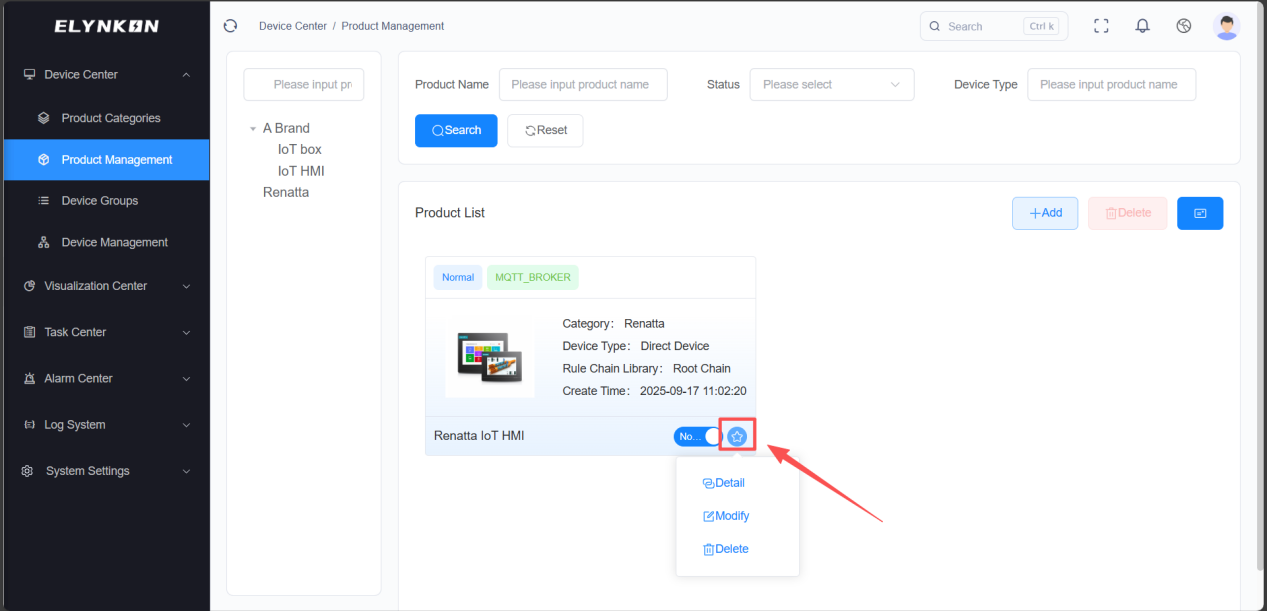
The product management function is designed to manage and maintain the IoT device product information and related parameters on the platform.
The product's parameters originate from the product's Thing Model (TSL). The Thing Model is a data model that describes the device's capabilities and attributes, defining the device's properties, services, and events.
It serves as the core carrier connecting physical devices with platform functions, enabling standardized management and intelligent interaction of devices.
Product Creation
Adding a New Product
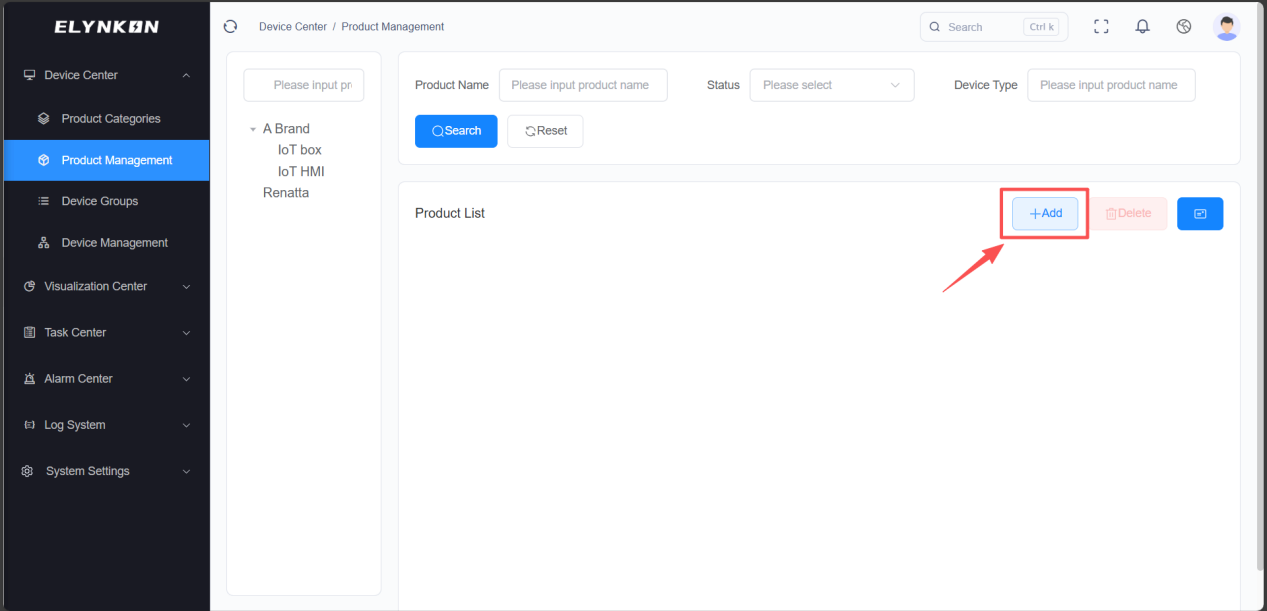
You can click the "+" button in the Device Management module to add a product.
Filling in Product Basic Information
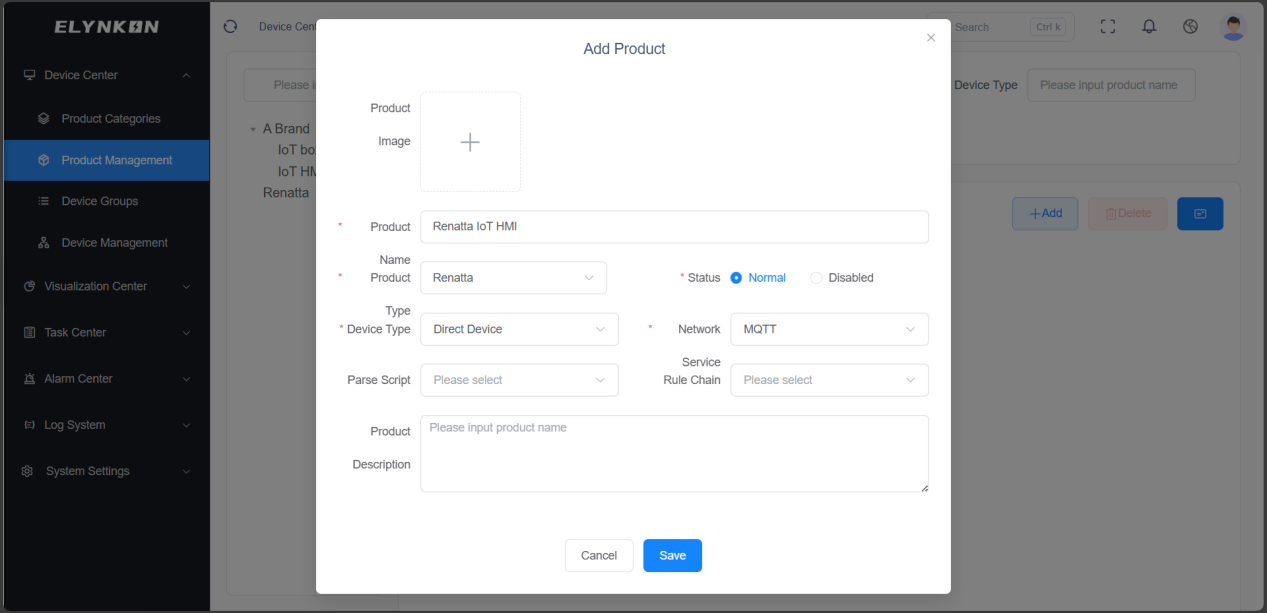
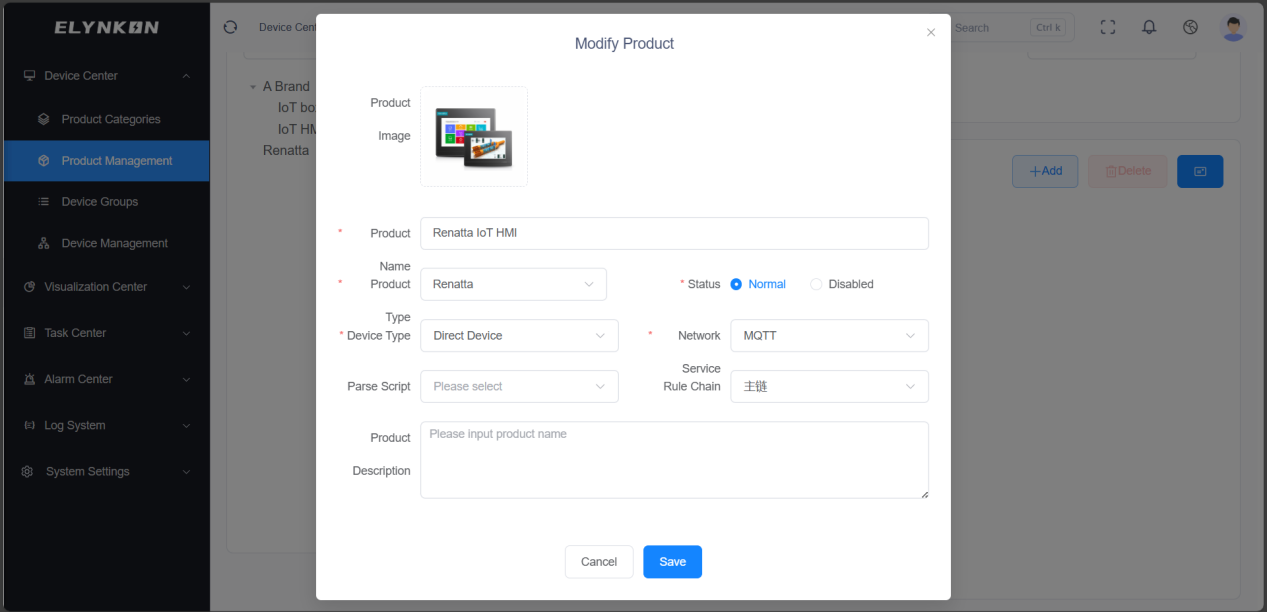
- Step 1: Enter product name: for example, "Brand A IoT HMI".
- Step 2: Select product category: for example, "Brand A" - "IoT HMI".
- Step 3: Select connection method: Direct-connected device or Gateway device.
- Step 4: Select communication protocol: MQTT, Modbus, etc.
- Step 5: Select status: Normal or Disabled.
- Step 6: Enter description.
- Step 7: Click the "Save" button.
Product Detail & Thing Model
Accessing the Product Detail Page
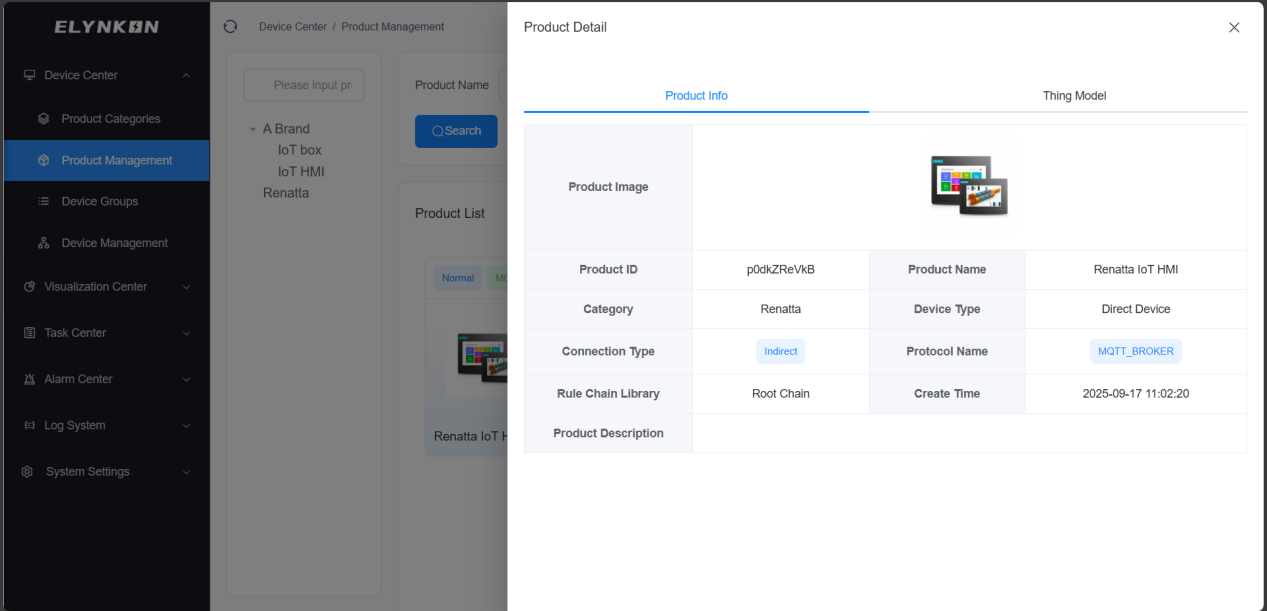
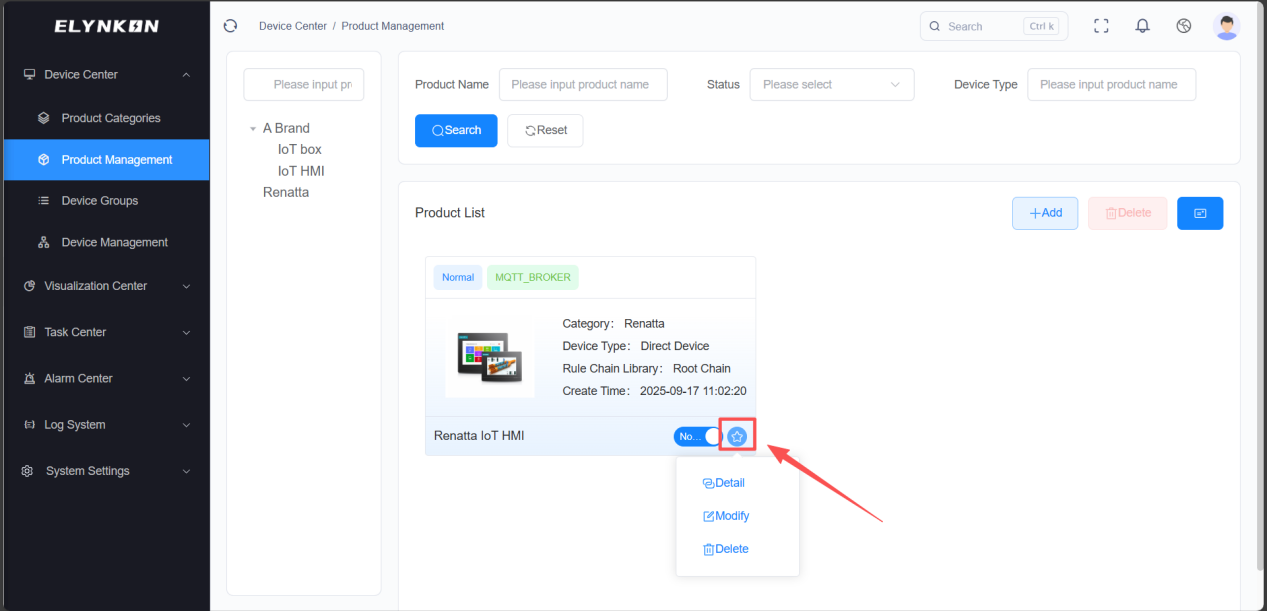
After the product is created, click the "Detail" button to configure the Thing Model of the product.
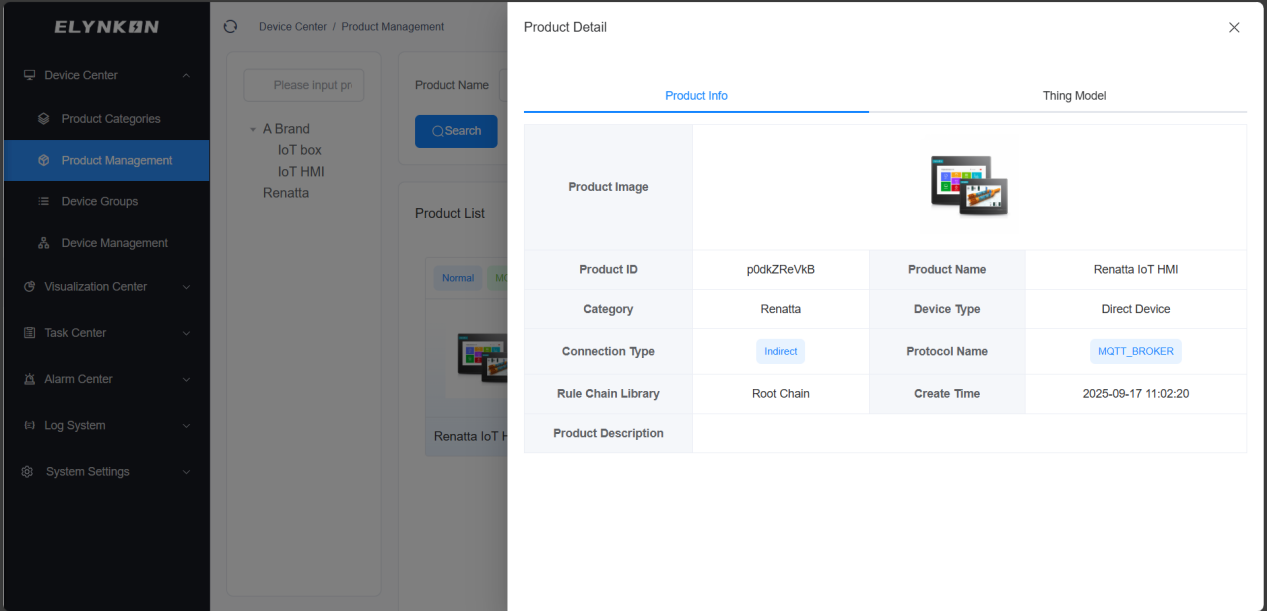
Product Information
Click on the "Product Information" tab to view the relevant information of the product.
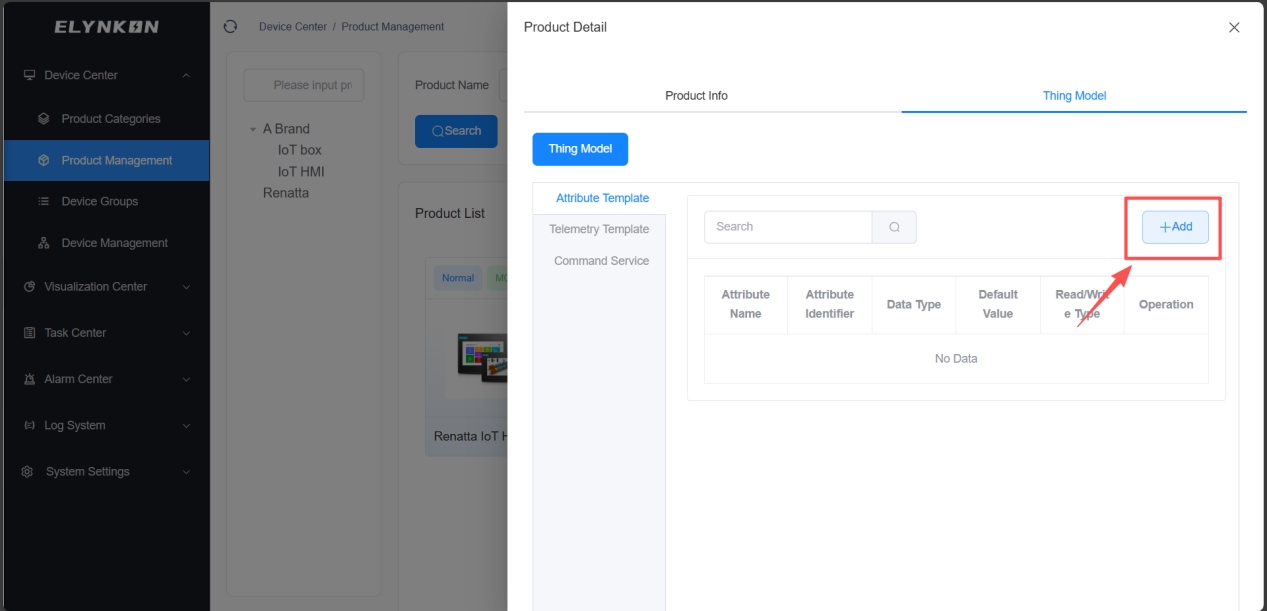
Thing Model
Click on the "Thing Model" tab to configure the thing model parameters for the product. After configuration is completed, all devices using this product template will automatically synchronize these parameters.
On-site devices can report parameters to the platform via MQTT protocol, based on the Thing Model we defined. And the platform can also control these devices.
A Thing Model consists of three main function types: Attribute, Telemetry, and Command Service.
- Attribute: The relatively stable status information of a device, usually used to describe the device's properties or infrequently changing status. For example: device name, mode, program version, etc.
- Telemetry: The real-time data of a device, mainly used to reflect the dynamic data during the operation of the device. For example: temperature, humidity, pressure, current, etc.
- Command: Define the operational instructions that a device can execute, and send control requests to the device.
Adding Parameters to the Thing Model
Adding Attribute Parameters
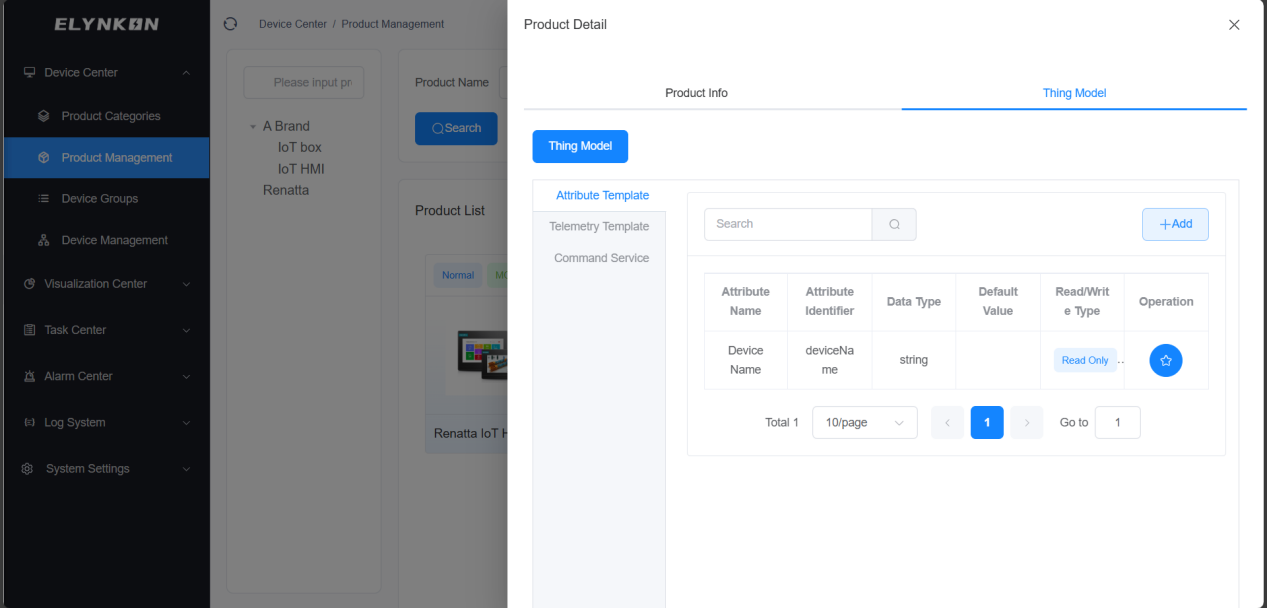
Step 1: Choose "Attribute Template" tab and click the "+Add" button in the top-right corner of the attribute template to add parameters.
Step 2: Enter the attribute name and attribute identifier. Select the data type and read-write permission. You can configure the default value and description as needed (these configurations are optional).
TIP
* For an identifier, the first character cannot be a number; it only supports the combination of English letters, numbers, and underscores.
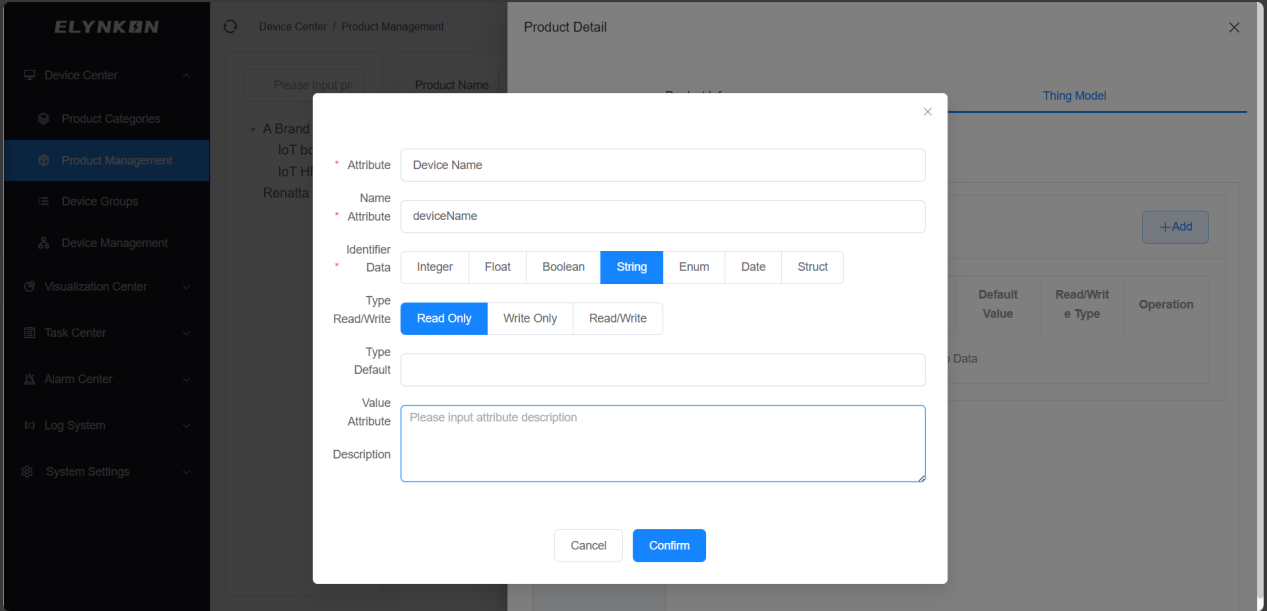
Step 3: After completing the above operations, click the "Confirm" button to complete the parameter addition. Attribute parameters will be displayed in the table of the "Attribute Template" tab.
Adding Telemetry Parameters
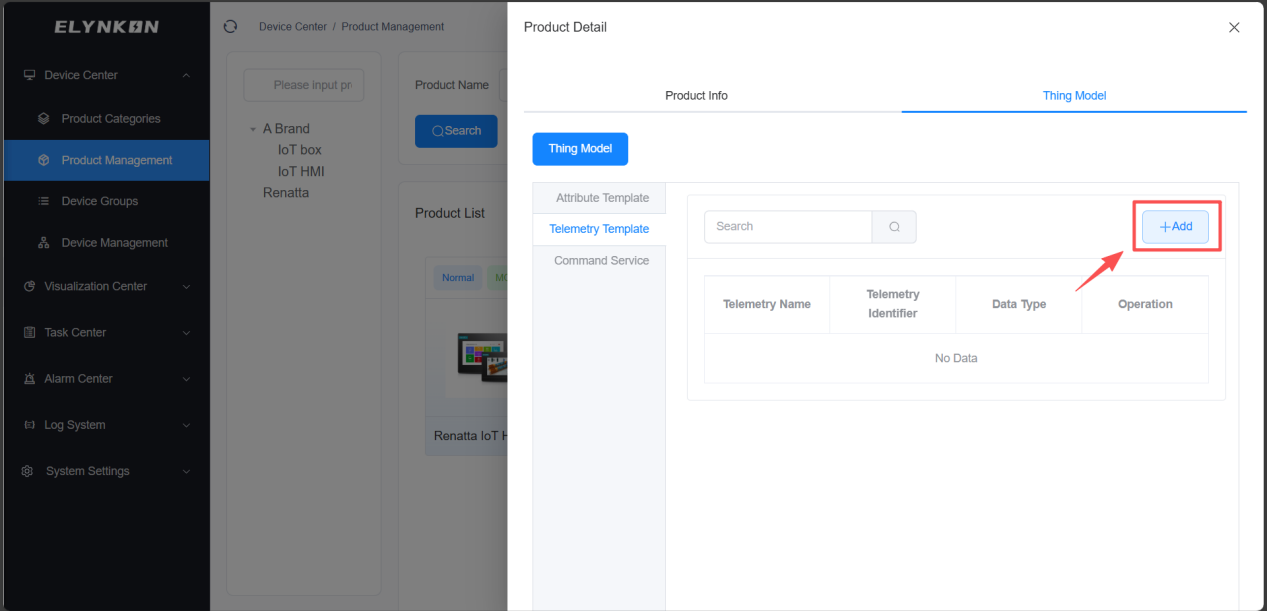
Step 1: Choose "Telemetry Template" tab and click the "+Add" button in the top-right corner of the telemetry template to add parameters.
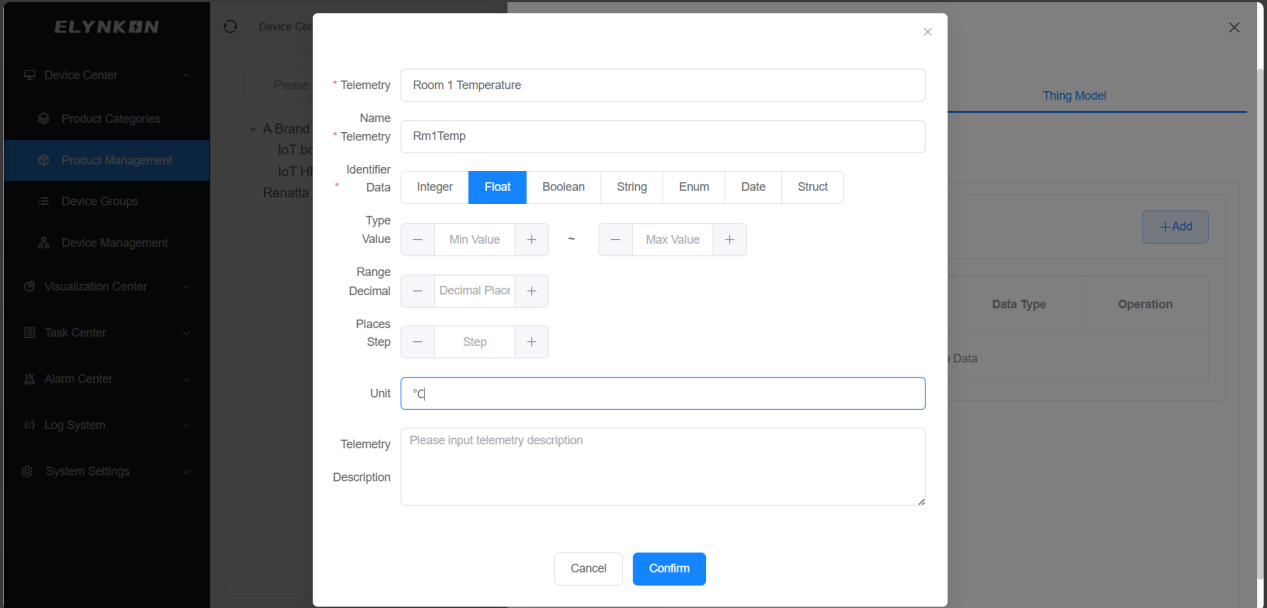
Step 2: Enter the telemetry name and telemetry identifier. Select the data type. You can configure the value range, decimal places, step, unit and description as needed (these configurations are optional).
TIP
* For an identifier, the first character cannot be a number; it only supports the combination of English letters, numbers, and underscores.
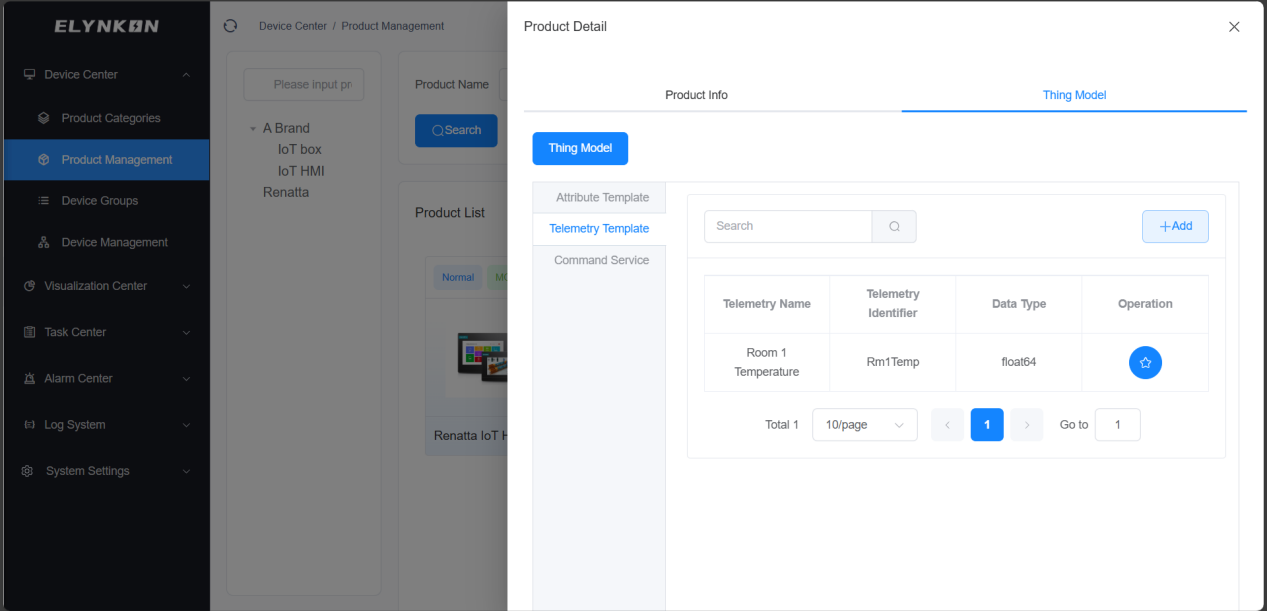
Step 3: After completing the above operations, click the "Confirm" button to complete the parameter addition. Telemetry parameters will be displayed in the table of the "Telemetry Template" tab.
Adding Command Service
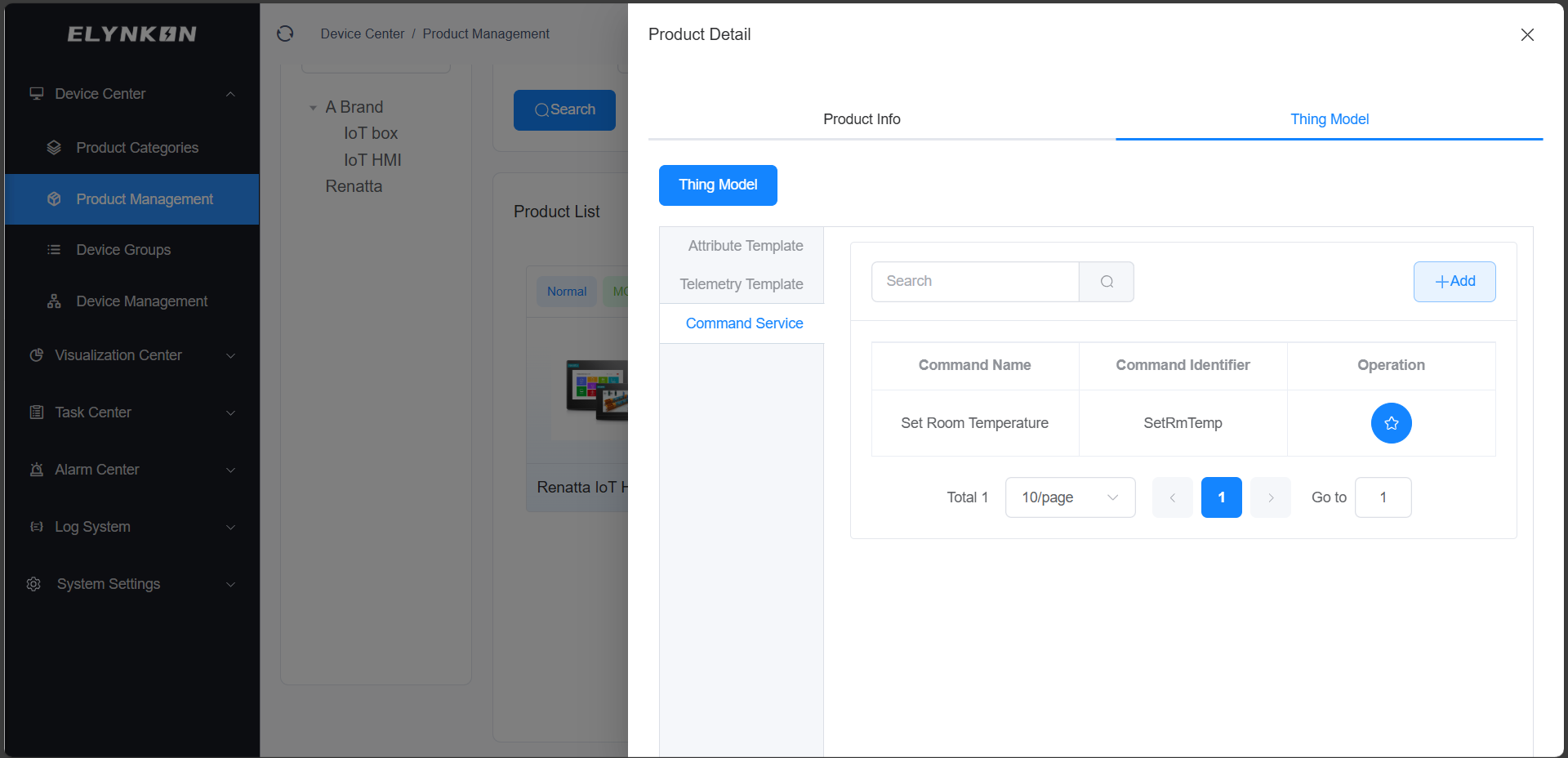
Step 1: Choose "Command Service" tab and click the "+Add" button in the top-right corner of the command service to add commands.
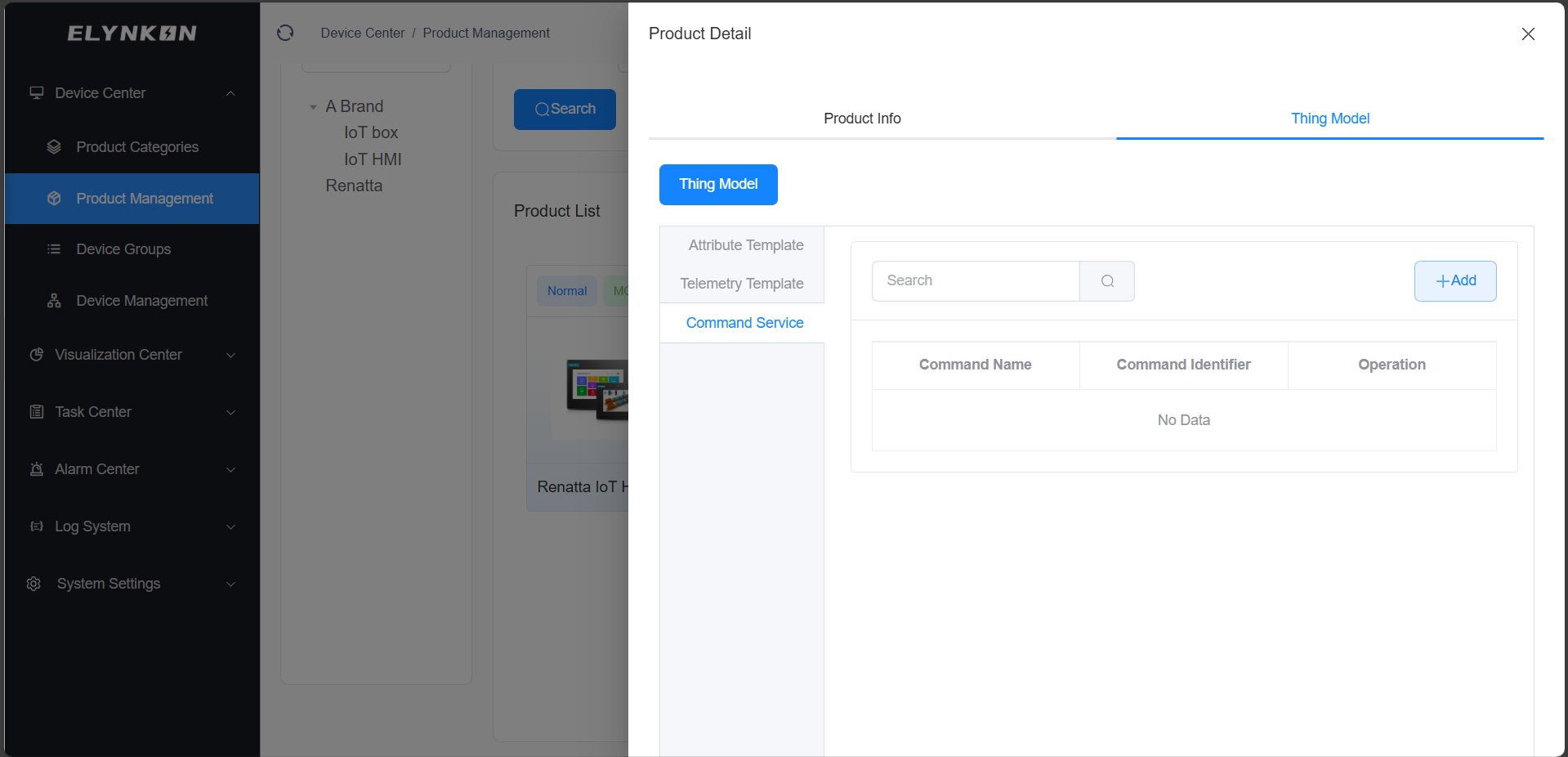
Step 2: Enter the command name and command identifier, then click the corresponding "+" icons for input parameters and output parameters to add the parameters.
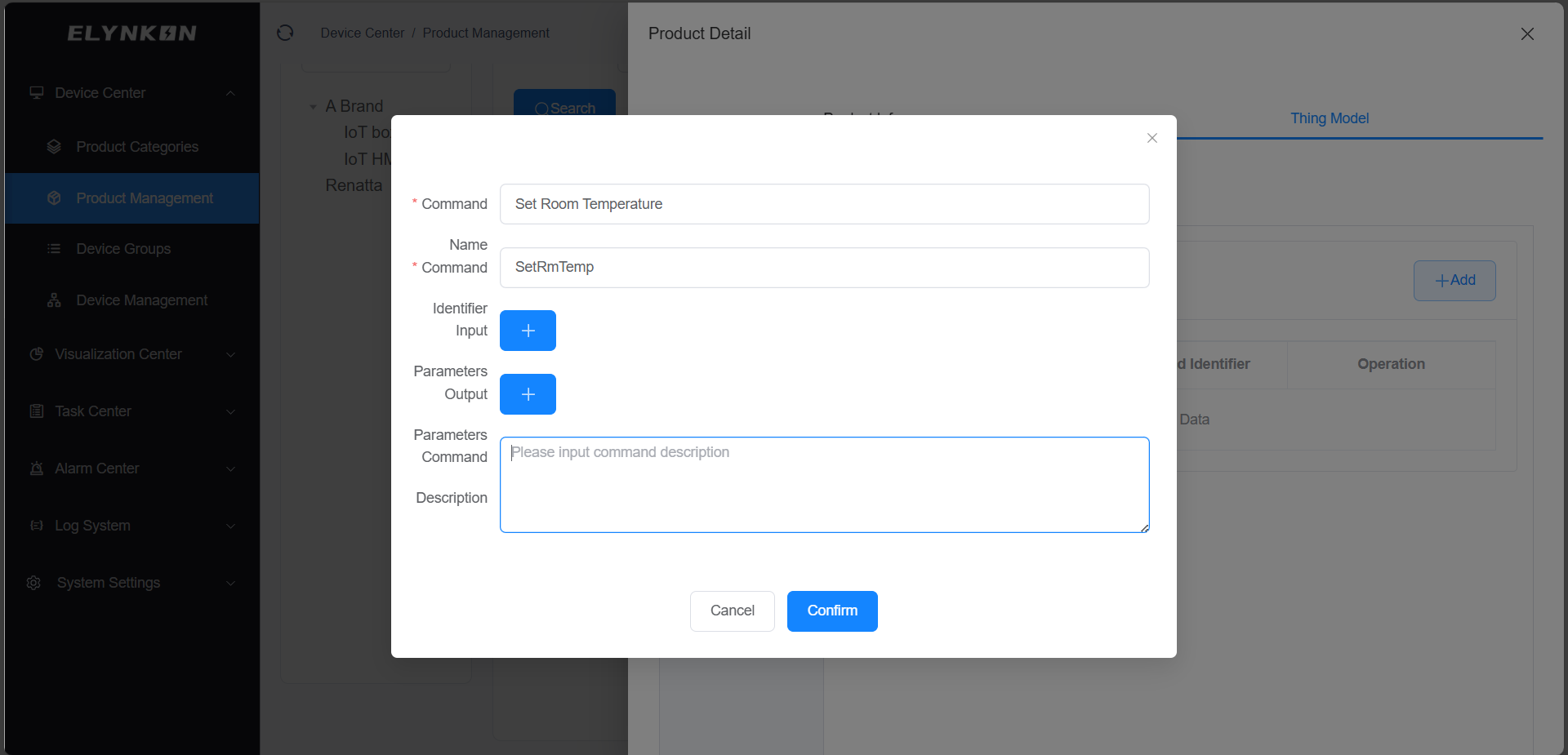
Step 3: In the pop-up (Input Parameter) settings window, enter the parameter name and parameter identifier, then select the data type. You can configure the value range, step, unit and description as needed (these configurations are optional).
TIP
* For an identifier, the first character cannot be a number; it only supports the combination of English letters, numbers, and underscores.
* Multiple input parameters can be added to one command service.
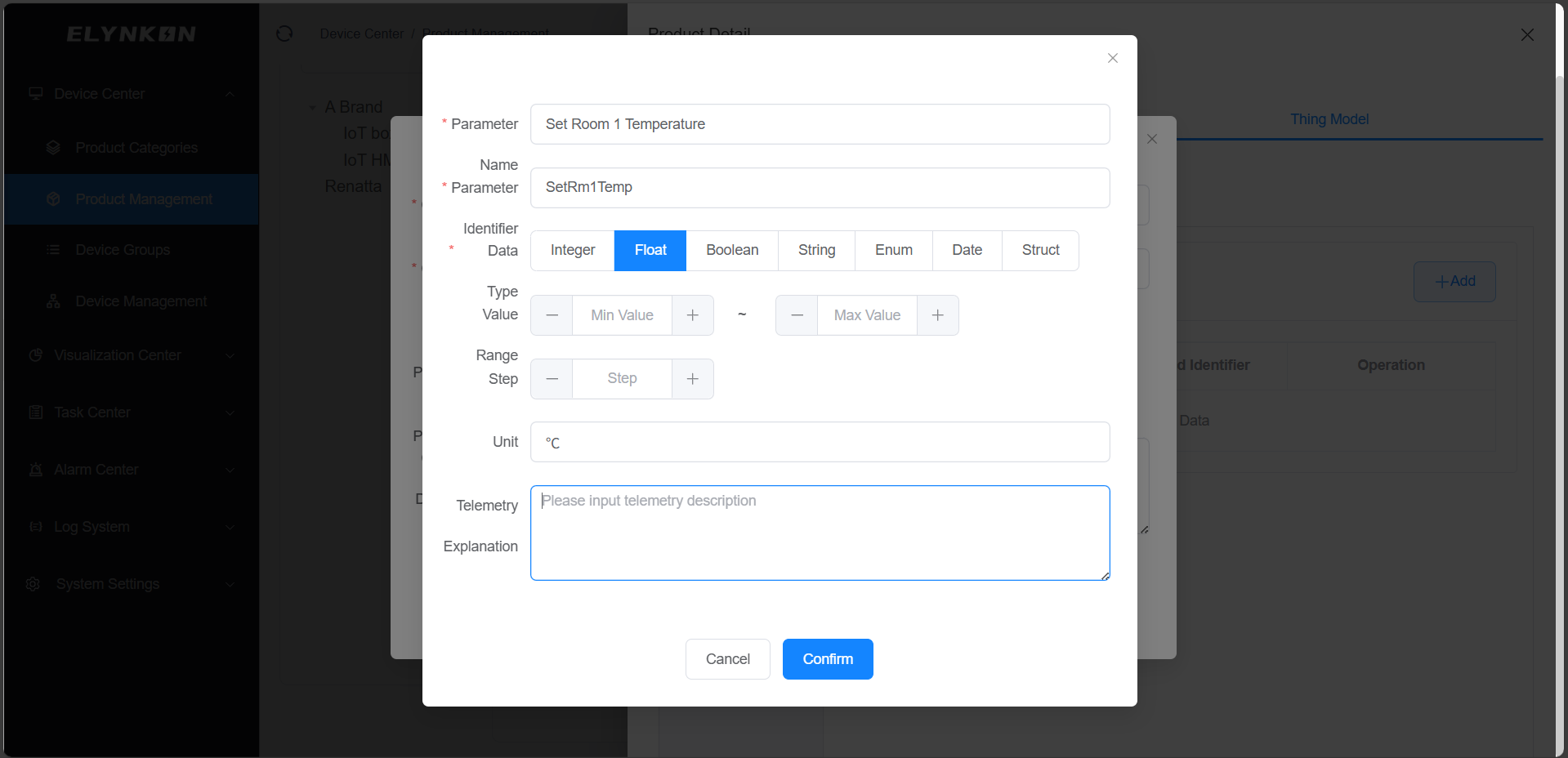
Step 4: In the pop-up (Output Parameter) settings window, enter the parameter name and parameter identifier, then select the data type. You can configure the value range, step, unit and description as needed (these configurations are optional).
TIP
* For an identifier, the first character cannot be a number; it only supports the combination of English letters, numbers, and underscores.
* Multiple input parameters can be added to one command service.
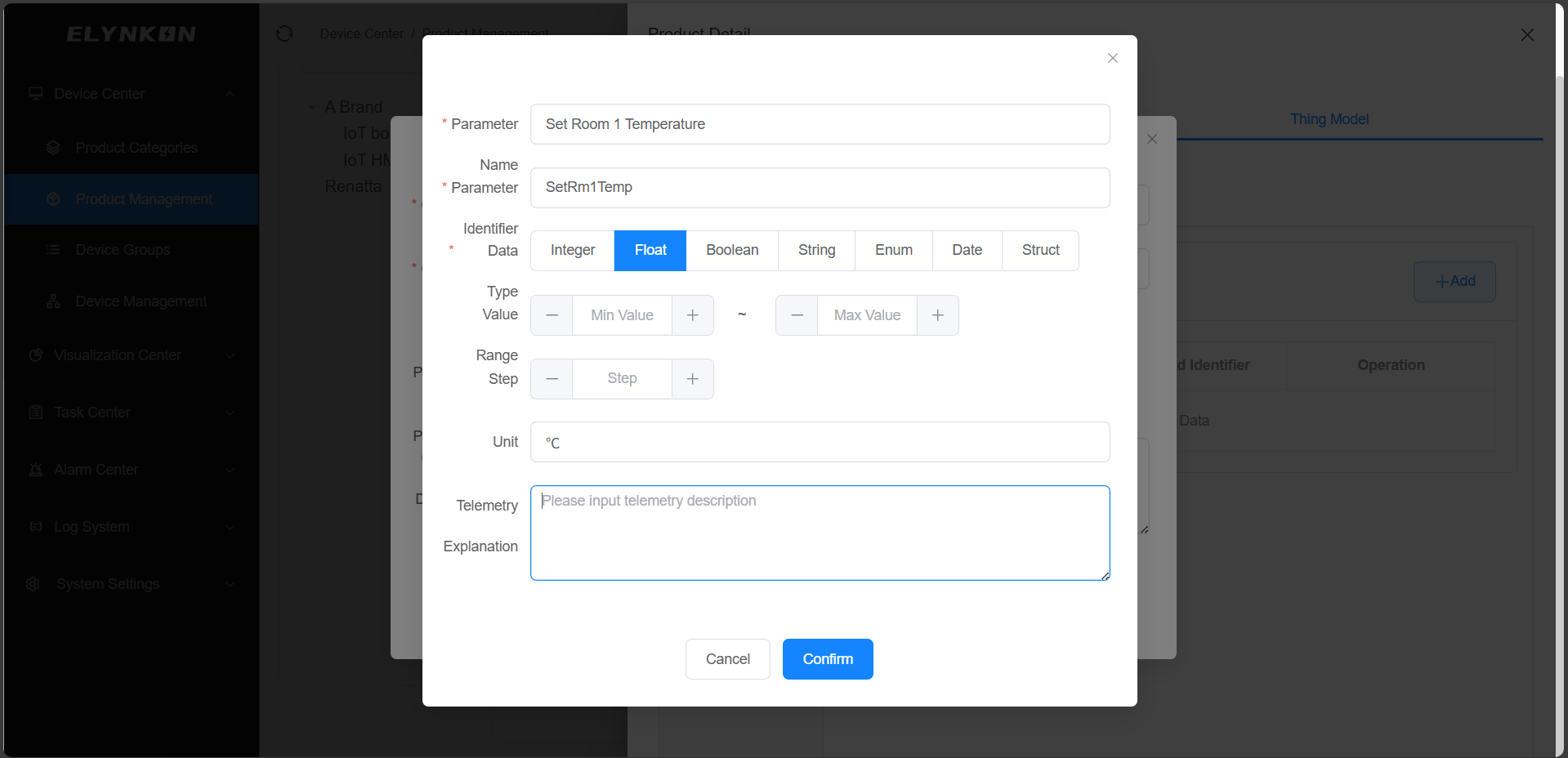
Step 5: After completing the above operations, click the "Confirm" button to complete the parameter addition. Commands will be displayed in the table of the "Command Service" tab.
MQTT Data Reporting Structure Based on the Thing Model
The product's Thing Model matches exactly with the MQTT data reporting structure of on-site devices. This section will explain the Topics and their Payload data structures for the three function types: Attribute, Telemetry, and Command Service.
Topic List
The table below shows the ### MQTT Topics
Topics corresponding to the various function types of the Thing Model.
| Type | Topic | Elynkon | Device | Description |
|---|---|---|---|---|
| Attribute | v1/devices/me/attributes | Sub | Pub | Device attribute reporting to the server Side |
| Telemetry | v1/devices/me/telemetry | Sub | Pub | Device telemetry reporting to the server side |
| Sub device attribute | v1/gateway/attributes | Sub | Pub | Gateway reporting attributes of sub devices |
| Sub device telemetry | v1/gateway/telemetry | Sub | Pub | Gateway reporting telemetry of sub devices |
| Command | v1/devices/me/rpc/request/+ | Pub | Sub | The server side issues control commands to the device |
| Command | v1/devices/me/rpc/response/$request_id | / | / | The device side responds with command execution results |
Attribute Reporting Format
{
  "attribute1": "value1",
  "attribute2": "value2"
}
TIP
* Parameters such as "attribute1" and "attribute2" in the JSON text correspond to the parameters in the "Attribute Template". For relevant information about the "Attribute Template", you can refer to the previous section.
Telemetry Reporting Format
If the device can obtain a timestamp, it can include the timestamp when reporting data. The platform will use the device's current time.
{
  "ts": 1689837909000,
  "values": {
    "telemetry1": "value1",
    "telemetry2": "value2"
  }
}
If the device cannot obtain the time, it can report data in the following format, and the platform will use the server's current time.
{
  "telemetry1": "value1",
  "telemetry2": "value2"
}
TIP
* Parameters such as "telemetry1" and "telemetry2" in the JSON text correspond to the parameters in the "Telemetry Template". For relevant information about the "Telemetry Template", you can refer to the previous section.
Sub Device Attribute Reporting Format
{
  "Device Code": {
    "attribute1": "value1",
    "attribute2": "value2"
  }
}
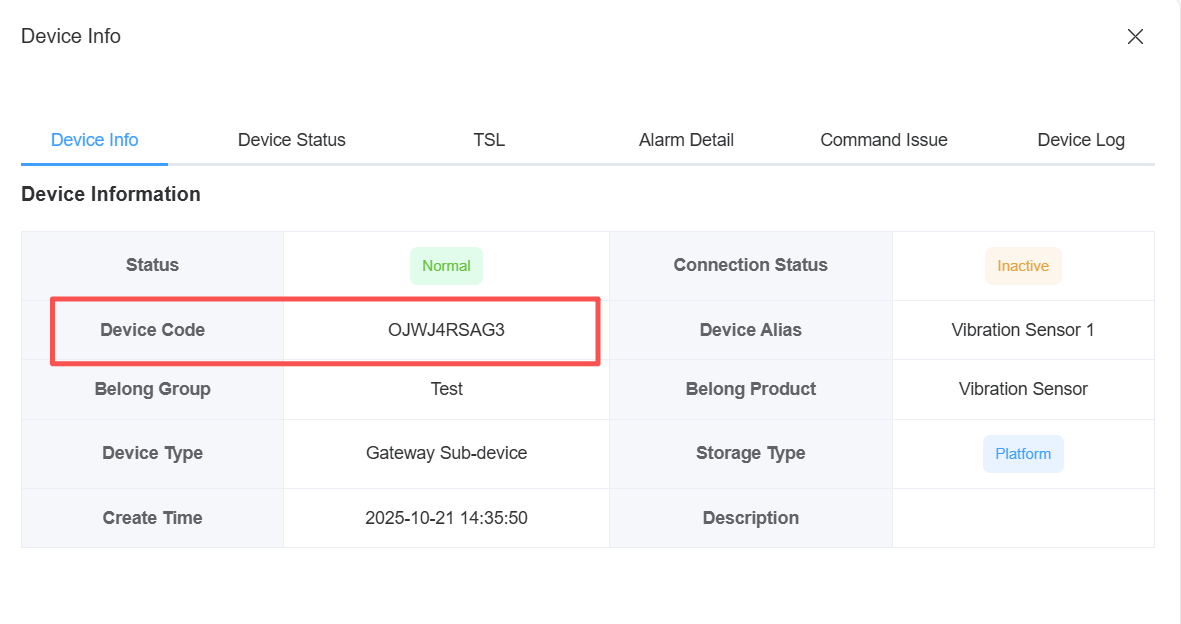
The device code can be viewed on the device information page of the corresponding device.
TIP
* Parameters such as "attribute1" and "attribute2" in the JSON text correspond to the parameters in the "Attribute Template". For relevant information about the "Attribute Template", you can refer to the previous section.
Sub Device Telemetry Reporting Format
If the device can obtain a timestamp, it can include the timestamp when reporting data. The platform will use the device's current time.
{
  "Device Code": {
    "ts": 1689837909000,
    "values": {
      "telemetry1": "value1",
      "telemetry2": "value2"
    }
  }
}
If the device cannot obtain the time, it can report data in the following format, and the platform will use the server's current time.
{
  "Device Code": {
    "telemetry1": "value1",
    "telemetry2": "value2"
  }
}
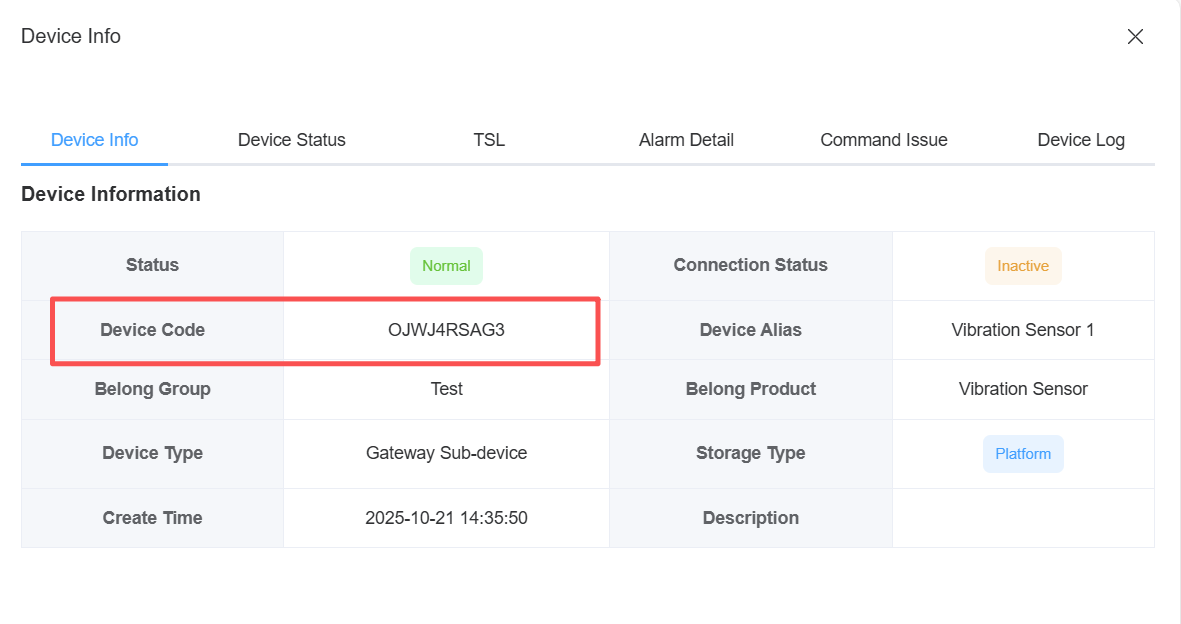
The device code can be viewed on the device information page of the corresponding device.
TIP
* Parameters such as "telemetry1" and "telemetry2" in the JSON text correspond to the parameters in the "Telemetry Template". For relevant information about the "Telemetry Template", you can refer to the previous section.
Command Issuing Format
If command is used to send data, "method" is the command identifier and "params" includes the parameter identifiers.
{
  "method": "CommandIdentifier",
  "params": {
    "parameter1": "value1",
    "parameter2": "value2"
  }
}
If attribute is used to send data, the default method is "setAttributes".
{
  "method": "setAttributes",
  "params": {
    "attribute1": "value1"
  }
}
Command response format
{
  "method": "Command Identifier",
  "params": {
    "parameter1": "value1",
    "parameter2": "value2"
  }
}
Product Modification
In the "Operation" column of the row where the target product is located, click the "Edit" button to access the dedicated editing page for this product and then modify the product information.
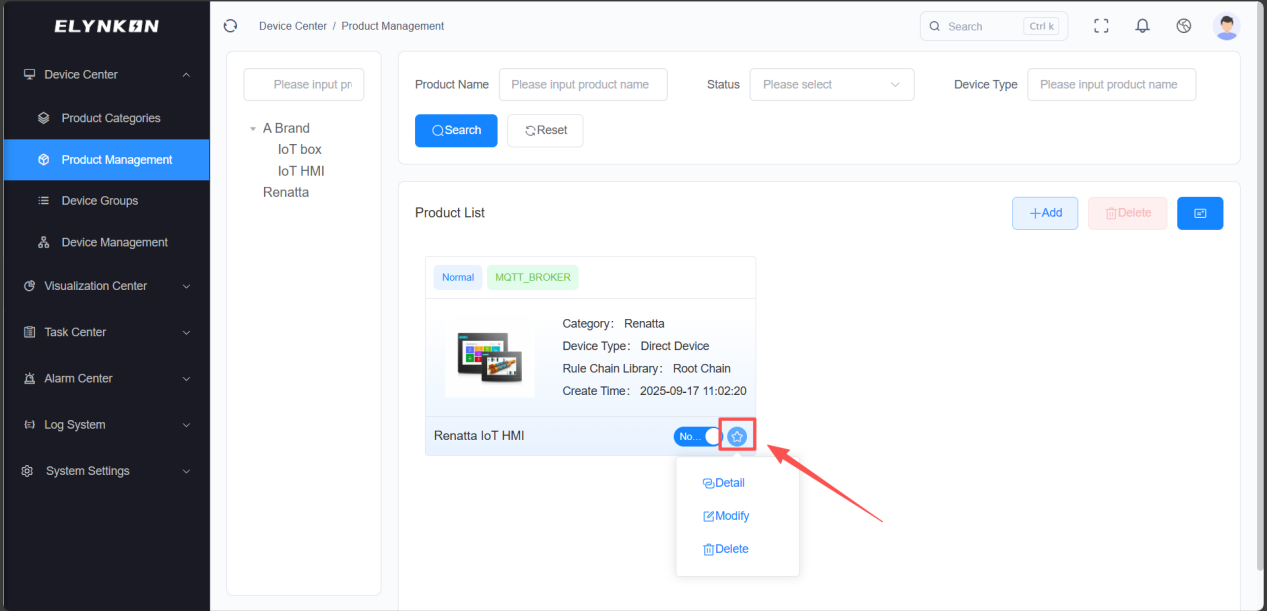
Modifiable product information includes: product name, product category, connection method, communication protocol, status, and description. Click the "Save" button to complete the modification.
Product Deletion
DANGER
Deleting a product is irreversible. Ensure that no devices are associated with this product before proceeding.
In the "Operation" column of the row where the target product is located, click the "Delete" button. After the confirmation window pops up, click the "Confirm" button in the window to complete the deletion of the product.